
Kaum-band graphic equalizer
Txav mus 32, 64, 125, 250, 500, 1000, 2000, 4000, 8000, thiab 16000 Hz los ntawm −12 dB rau + 12 dB yog li ib qhov ntau tuaj yeem hloov pauv yam tsis tau sau tag nrho cov khoom sib xyaw.
Muab cov neeg hais lus nyias ntau dua bass thaj tsam, tom qab ntawd ua cov lows hla kaum pawg. Tig cov nyhuv thaum lub tab ua si, txuag ib qhov chaw profile, thiab rov qab ua qhov qub sib xyaw txhua lub sijhawm.
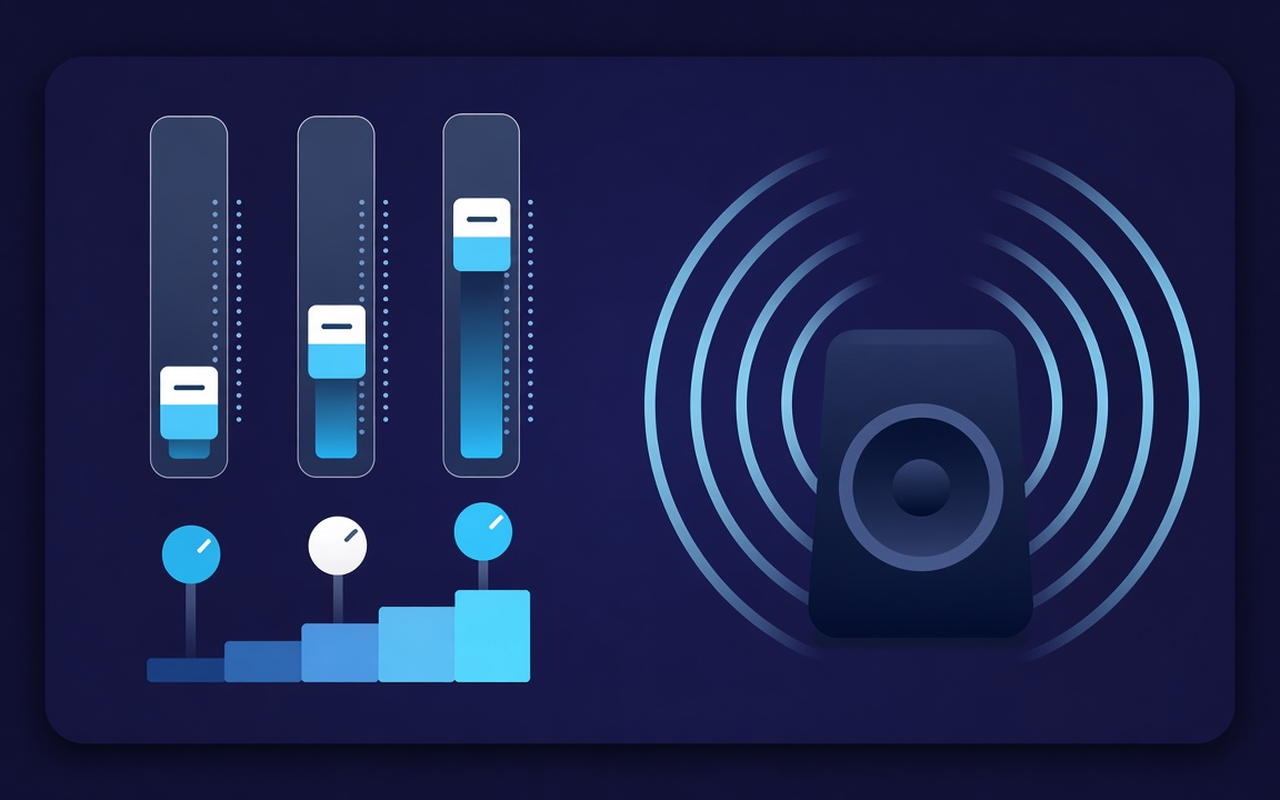
Tone rau lub tab uas ua si
Txav mus 32, 64, 125, 250, 500, 1000, 2000, 4000, 8000, thiab 16000 Hz los ntawm −12 dB rau + 12 dB yog li ib qhov ntau tuaj yeem hloov pauv yam tsis tau sau tag nrho cov khoom sib xyaw.
Load Bass Boost lossis tsa cov sliders qis thaum lub laptop suab nrov hollow, los yog siv Bass Cut thaum chav tsev twb boomy.
Dhia los ntawm Flat mus rau Lub Suab, Pob Zeb, Classical, Hip-Hop, Hais Lus, Cov Hais Lus Me, thiab ntau dua, tom qab ntawd txav ib pawg tom qab preset loads.
Nqa cov podcasts ntsiag to thiab cov clips qub nrog qib tswj ntawm ib sab ntawm cov bands, tom qab ntawd yooj yim rov qab thaum cov clip tom ntej no nrov heev.
Kev ua raws li lub tab uas koj muab cov nyhuv rau, yog li lwm lub tab tuaj yeem ua si lub vev xaib sib xyaw raws li tau sau tseg.
Nco ntsoov qhov nkhaus rau txhua qhov chaw, txuag tau txog nees nkaum kev cai presets, hloov npe rau txoj haujlwm, thiab tshem tawm cov uas koj loj hlob.
Yooj yim los ntawm kev tsim
A Chrome popup equalizer for the current tab — ten bands, bass-focused presets, and a volume booster with per-site memory.
Chrome Web Khw
“Bass Boost makes thin laptop speakers usable for late-night playlists without touching other tabs.”
“Voice and Speech presets pull talk forward; the volume slider helps when a host recorded too quietly.”
“Per-site profiles mean my lecture tab and music tab do not fight over one curve.”
Peb kauj ruam ceev
Start the lecture, playlist, or video you want to shape, then open Sound Equalizer – Bass Booster from the toolbar.
Enable processing, load a preset or move the ten bands, and set the volume. Close the popup — work continues on that tab.
Reopen the popup to change the curve, switch presets, power off, or restore the original sound the site delivered.
Cov lus teb ua ntej koj nruab
No. Processing stays on the tab where you turned the effect on. Other tabs keep the mix the site intended until you enable the extension there too.
Load the Bass Boost preset or raise the low Hz bands (especially 32, 64, and 125). Leave the volume percentage alone unless the clip itself is too quiet.
Each slider is a fixed center frequency from 32 Hz to 16000 Hz, movable from −12 dB to +12 dB. Small moves are usually enough; extreme boosts can sound muddy or harsh.
Yes. Use the volume control in the popup — it can raise the tab level up to 600%. Increase in small steps and trim bright or boomy bands if the gain exposes noise.
Per-site profiles remember the curve for that page. You can also save, rename, and delete your own presets (up to twenty) beside the nineteen built-in names.
Turn the effect off, or use restore original in the popup, to hear the untouched stream from the site on that tab.